Build a basic IVR (auto-attendant menu)
Set up an auto-attendant that greets callers and sends them to the right extension, voicemail box, or department based on which key they press.
Who this is for: admins
Before you start
- Admin access to your Phonovo portal.
- The extensions you want each key to reach already set up — see Create an extension and assign it to a user.
- (Optional) a phone number already assigned to your domain, if you're ready to point it at the menu right away. You can also build the menu first and connect a number to it later.
Steps
- In the sidebar, under Communication, select IVR Menus.
- Select Create IVR Menu in the top right.
- Under Basic Information, enter a Menu Name (required — for example, "Main Menu") and, optionally, a Description. Phonovo assigns the Extension for you — you'll briefly see "Assigning..." before it fills in the next free number between
5000and5999; this field is read-only. - Under Greeting, select Greeting Recording and choose an existing recording, or use Text-to-Speech, Record with Microphone, or Upload Audio File to create a new one on the spot. This is what callers hear as soon as the menu answers.
- Set Timeout (seconds) — how long Phonovo waits for a key press before falling back to the exit action below.
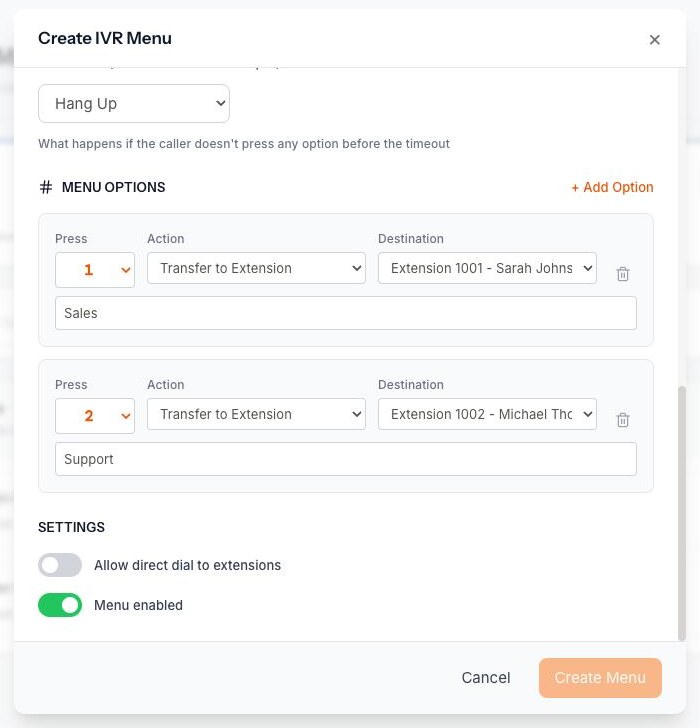
- Under Exit Action (on timeout or invalid input), choose what happens if nobody presses a key, or presses one you haven't set up: Hang Up, Transfer to Extension, or Send to Voicemail. If you pick Transfer or Voicemail, choose the destination extension from the dropdown that appears next to it.
- Under Menu Options, select + Add Option for each key you want callers to be able to press. You can add up to twelve — one for each of
0–9,*, and#. -
For each option, choose the digit under Press, then pick an Action: Transfer to Extension sends the call straight to someone's extension; Send to Voicemail drops the caller into that extension's voicemail box without ringing it first. Either way, choose the extension from the Destination dropdown next to it, and add a short description underneath (for example, "For Sales") so you can recognise the option later.
Note
Each key here can only be pointed at a single extension or its voicemail box — there's no "ring a whole team at once" option inside an IVR menu. If you want a key to reach several people, either point it at one person on that team, or give the team's Ring Group its own phone number under Inbound Routing instead of routing it through this menu.
-
Under Settings, leave Menu enabled switched on so the menu goes live, and turn on Allow direct dial to extensions if callers who already know someone's extension number should be able to dial straight through instead of using your menu options.
- Select Create Menu.
Point a phone number at the menu
An IVR menu doesn't answer any calls until a phone number is routed to it.
- In the sidebar, under Communication, select Inbound Routing.
- Select Add Route. In the Add Inbound Route dialog, choose the number you want callers to reach this menu on from Phone Number (or select "Or enter number manually" if it isn't listed), add an optional Description, then select Add Route — this opens the new route in the call flow panel on the right.
- With Simple selected at the top of the panel (the default), leave Welcome greeting blank under During open hours — your menu already has its own greeting, so this one's only needed if you want an extra message to play first. Set Route call to to your new menu, listed under the IVR Menus group in the dropdown. Do the same under During closed hours, either pointing after-hours callers to the same menu or choosing something else, like Voicemail — Phonovo won't let you save until both are set.
- Select Save.
Screenshot
Screenshot of the Inbound Call Routes page in Simple mode, with the Route call to dropdown open showing the IVR Menus group and the new menu selected.
Related
Ask Olivia
You can also ask Olivia, the in-portal assistant, to walk you through this.