My desk phone won't register
Work through this checklist to find out why a phone is stuck without a working connection to your phone system, and fix the most common cause yourself.
Who this is for: everyday users and admins — anyone can spot the symptom, but fixing the most common cause needs an admin.
Before you start
- The extension number the phone is meant to use (for example,
1001). - Access to the Phonovo portal. Checking status doesn't need special permissions, but fixing an unassigned extension does need an admin or superadmin role.
Steps
- Check what the phone itself is showing. A phone that won't register typically displays something like Not registered or Registration failed on its screen, or keeps bouncing back to a login/PIN prompt instead of showing the time and extension number. Repeatedly being asked to re-enter credentials is the same underlying problem.
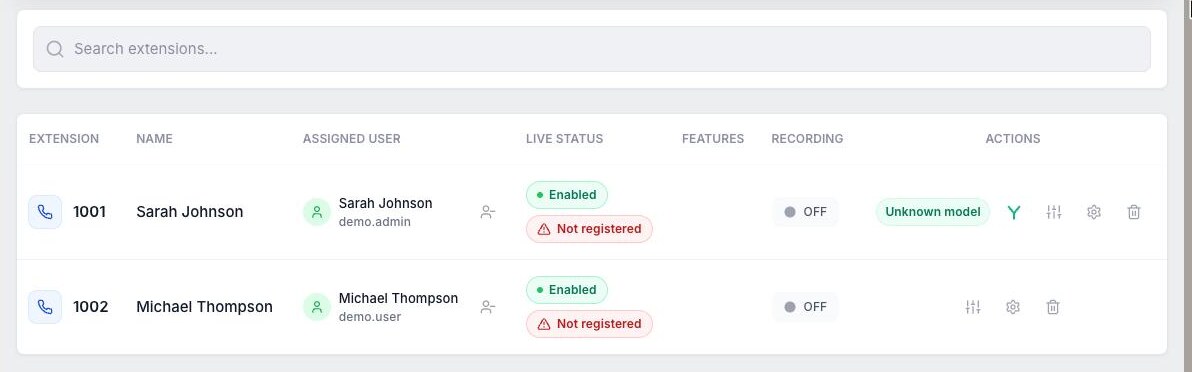
- In the Phonovo portal, go to Extensions in the sidebar (under Communication) and find the row for that extension number. Look at the Assigned User column.
- If it shows Not assigned (or an Assign button rather than a person's name), you've found the cause — this is by far the most common reason a phone won't register. The extension exists in the system, but until it's linked to a user account, there's no sign-in credential for the phone to use, so it will keep failing to register no matter how many times it retries. An admin fixes this by selecting Assign on that row and choosing the person from the Assign to User list. Full walkthrough: Create an extension and assign it to a user.
- Once Assigned User shows a name, check the Live Status column. It shows a Registered badge once the phone has successfully connected, or Not registered if it hasn't yet.
- Still showing Not registered a minute or two after the assignment is done? Double-check the phone is set up for the right extension — the number entered on the phone (in its display or settings screen) needs to exactly match the number in the Extension column, and it should be the device belonging to the person shown in Assigned User, not someone else's.
- If the phone is a Yealink desk phone provisioned through Phonovo, an admin can push it a fresh copy of its settings without touching the handset: on the Extensions page, select the reprovision icon (a small green arrow) next to that extension in the Actions column, then give the phone a minute or two to pick up the update and re-register. This is the quickest way to resync a phone's credentials after an assignment change.
- Using a softphone or the in-portal Dialpad instead of a desk phone? Have that person sign out and back in to their own Phonovo account — since the extension is tied to their login, this refreshes its credentials the same way reprovisioning does for a desk phone.
- Worked through all of the above and it's still not registering? Contact support. At that point it's more likely to be a device or network issue than something in the portal, and support can check the phone system side for you.
Related
Ask Olivia
You can also ask Olivia, the in-portal assistant, to walk you through this.