Block outbound and inbound calls with Call Barring
Stop your team from dialling certain types of numbers, block specific numbers from being called or from calling in, and override the rules for individual extensions when needed.
Who this is for: admins
Before you start
- Emergency calls use 999 and 112. Police non-emergency calls use 101 and NHS calls use 111; these two numbers use the domestic carrier route. All four numbers are protected from Call Barring settings.
Steps
Bar categories of outbound numbers
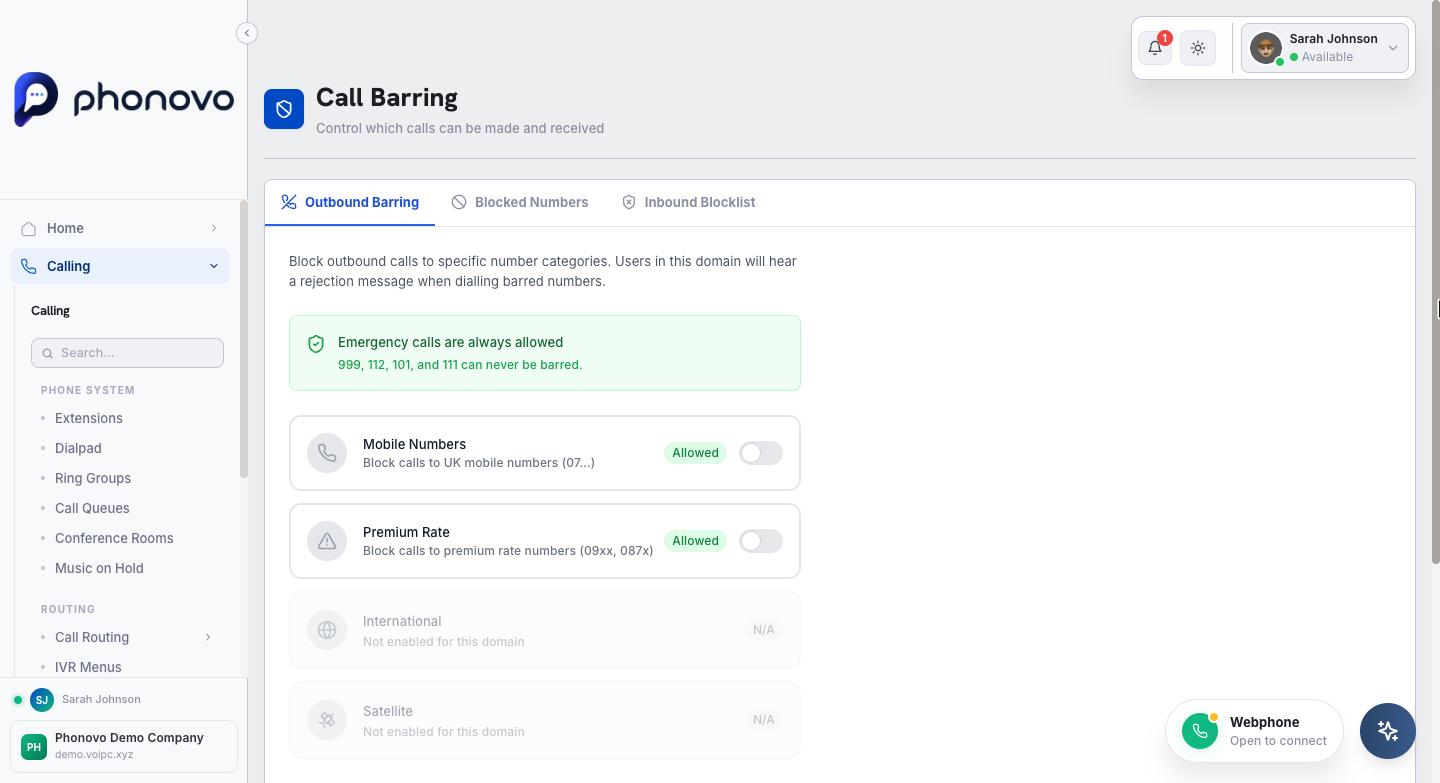
- In the sidebar, under Communication, select Call Barring.
- On the Outbound Barring tab, toggle any category you want to block for the whole domain: Mobile Numbers (07...), Premium Rate (09xx, 087x), International (00...), or Satellite (00881/00882/00883). A barred category turns red and shows Barred; an allowed one shows Allowed.
- Select Save Changes.
Block specific numbers
- Select the Blocked Numbers tab to control outbound calls, or the Inbound Blocklist tab to control incoming calls.
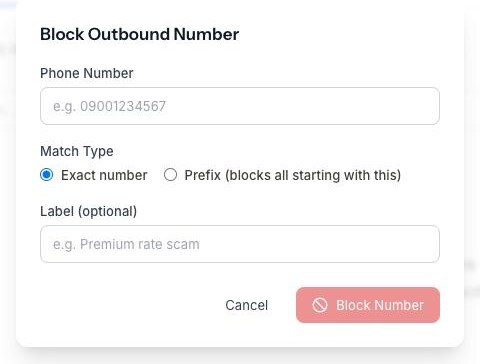
- Select Block Number.
- Enter the Phone Number, choose a Match Type — Exact number or Prefix (blocks every number starting with what you enter) — and add an optional Label (for example, "Premium rate scam" or "Spam caller") so you remember why it's there.
- Select Block Number to save. The entry appears in the table, where you can search for it later or remove it with the trash icon.
Override the rules for one extension
- Go to Extensions in the sidebar, find the extension, and select its Configure icon (the sliders icon in the Actions column).
- Select the Call Barring tab. By default it shows Using domain defaults — the extension follows whatever you set on the domain-wide Outbound Barring tab.
- Toggle any category on or off to create a custom override just for this extension — the panel switches to Custom rules for this extension automatically.
- Select Save Changes. To remove the override and go back to following the domain rules, select Revert.
Related
Ask Olivia
You can also ask Olivia, the in-portal assistant, to walk you through this.