Set up two-factor authentication (2FA)
Add an extra layer of protection to your account by requiring a code from an authenticator app, on top of your password, when you sign in.
Who this is for: everyone — every role, in every portal, can turn on 2FA for their own account.
Before you start
- An authenticator app on your phone, such as Google Authenticator, Authy, or 1Password.
- A safe place to store backup codes — a password manager or printed copy kept somewhere secure. You'll need them if you ever lose access to your authenticator app.
Steps
- Click your name in the top right of the portal to open the account menu, then select Security Settings. (You can also get here through Settings, then under Security in the left-hand list select Two-Factor Authentication — both paths open the same setup screen.)
- If 2FA isn't set up yet, you'll see 2FA is not enabled. Select Enable 2FA to start.
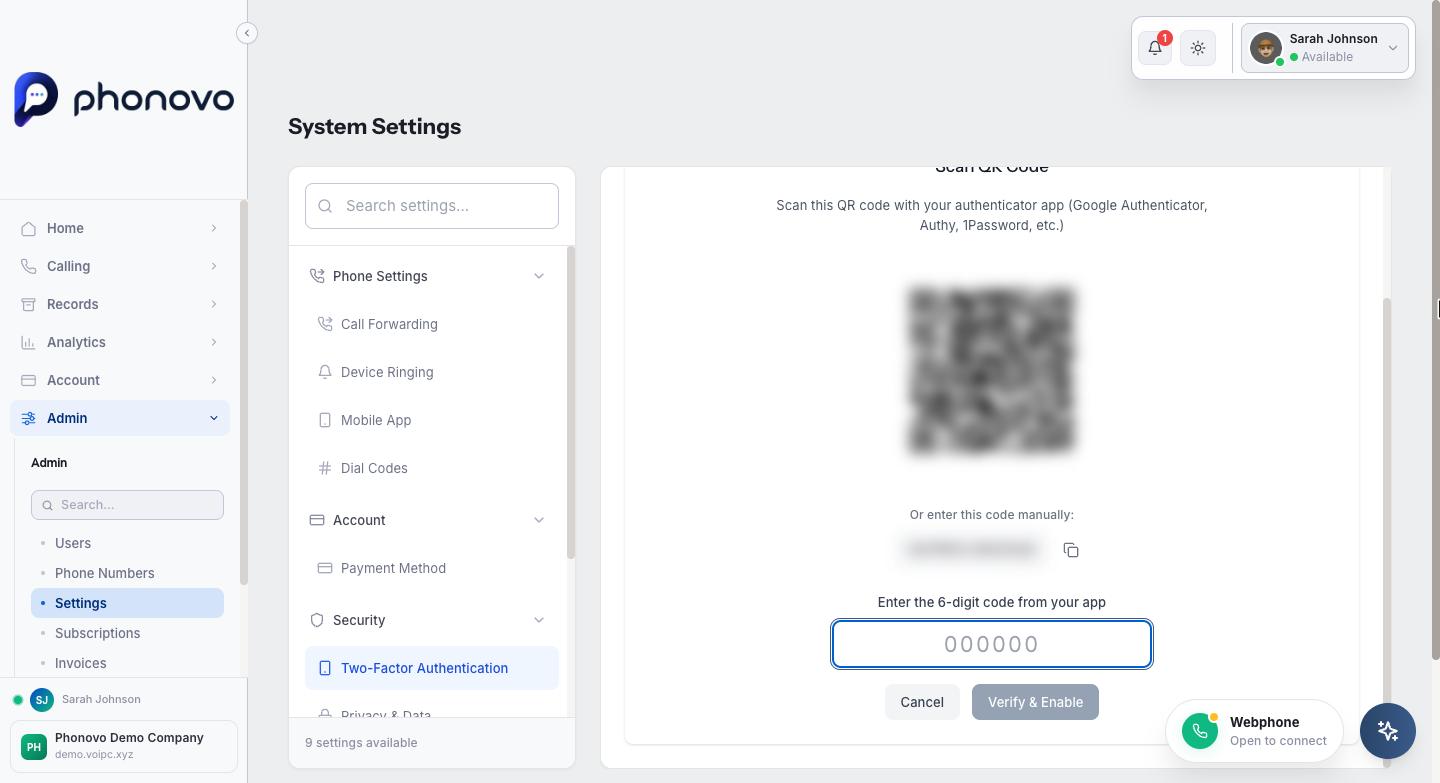
- A QR code appears. Open your authenticator app and scan it — or, if you can't scan a code, select the manual code shown underneath and enter it into your app yourself.
- Your authenticator app now shows a rolling 6-digit code for Phonovo. Type that code into the Enter the 6-digit code from your app field, then select Verify & Enable.
- You'll be shown a set of one-time backup codes. Select Copy All Codes and store them somewhere safe — each code can only be used once, and this is the only time you'll see them. Once you've saved them, select I've Saved My Codes.
- The screen now shows 2FA is enabled, along with the date it was turned on and how many backup codes you have left. From now on, signing in will also ask for a code from your authenticator app.
- To get a fresh set of backup codes at any time, select New Backup Codes and enter a current code from your app to confirm.
- To turn 2FA off again, select Disable 2FA, then enter your password and a current code from your app to confirm.
Related
Ask Olivia
You can also ask Olivia, the in-portal assistant, to walk you through this.