Set up music on hold
Replace the default hold music callers hear while waiting or on hold with your own track. Upload one, or generate one with AI.
Who this is for: admins
Before you start
- If you're uploading your own track, have an MP3 or WAV file ready (up to 10MB).
Steps
Upload your own track
- In the sidebar, under Communication, select Music on Hold.
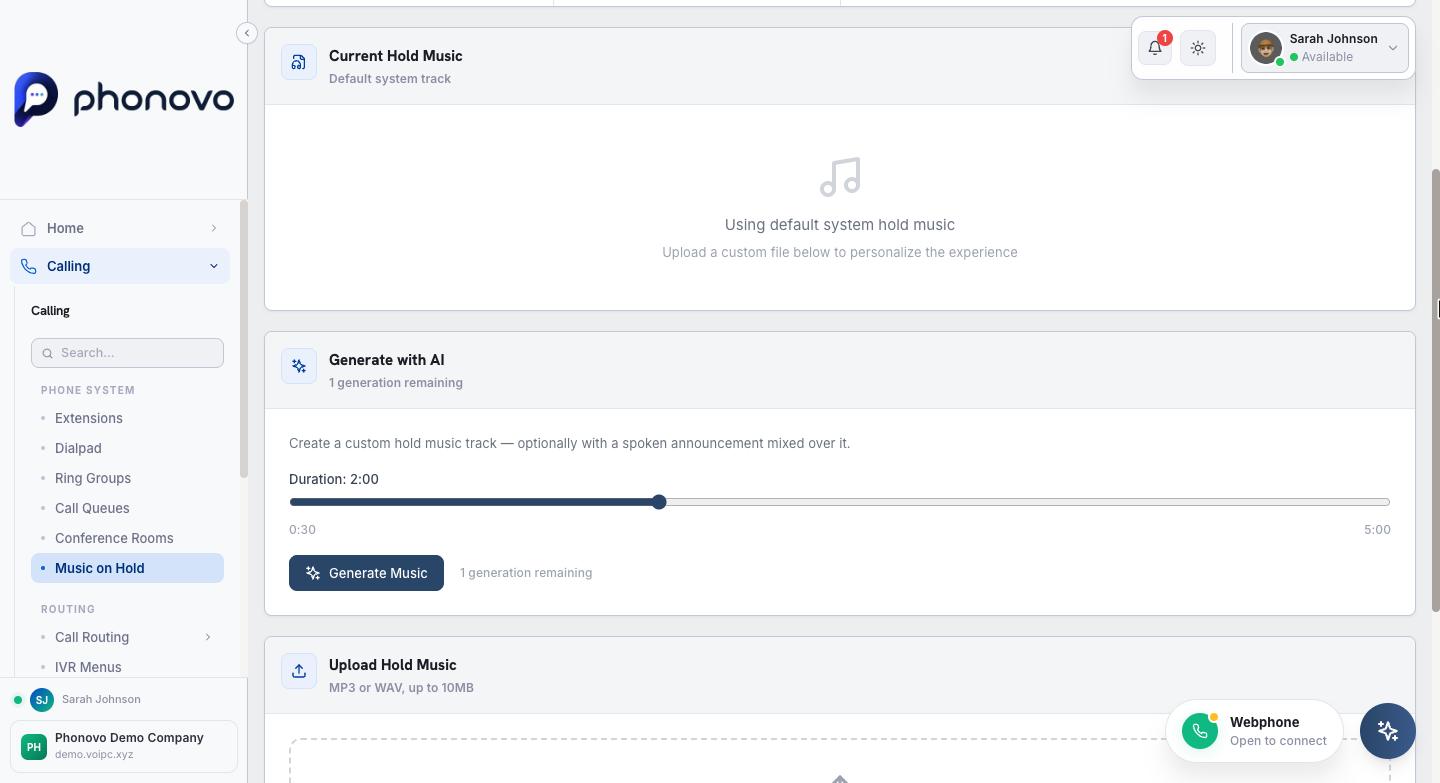
- Under Upload Hold Music, select the drag-and-drop area to browse for a file, or drag an MP3 or WAV file directly onto it.
- Confirm that your company has the right to use the audio, then select Upload. Your new track is saved and then becomes the Current Hold Music. If the page shows Going live, you can leave while Phonovo finishes the update.
- To listen to what's currently set, select Listen to preview under Current Hold Music and use the play/pause button and progress bar.
- To replace the current track, select Replace and upload a new file the same way. To go back to the standard music, select Delete. Saved tracks remain in the library.
Generate a track with AI
- Under Generate with AI, use the Duration slider to set how long the track should be.
- Select Generate Music, then describe the music style and optionally add a spoken announcement.
- Confirm the details and generate the track. Once it is saved, it becomes your current hold music and is also kept in the library. If the page shows Going live, Phonovo is still finishing the update.
- Your company has a limited number of AI generations included. The panel shows how many remain. If you run out, select Purchase AI Music Generation to buy more.
If generation fails before the track is saved to your library, it does not use one of your company's generations.
Manage saved tracks
Track Library lists every uploaded, AI-generated and remixed track for your company. Each card shows its source, length and creation date. The track callers currently hear has a Live badge.
- Select Listen to load the track, then use the audio controls to play, pause or seek.
- Select Use this track to make a saved track live. If the change needs a little longer, the track shows Going live and the list refreshes when it is ready.
- Select Rename to change the name, then select Save.
- Select Delete to permanently remove a track. You cannot delete the live track. Choose another track first, then delete it.
If a saved track does not go live
The page normally updates itself from Going live to the new current track. If it instead says the track could not go live, select Retry going live. This applies the saved track from your library and does not use another AI generation.
If the page cannot confirm a save
Reload the library first because the track may already be there. If it is not, contact support and quote the reference shown on the page. If the track was an AI generation and it was not saved, support returns the generation to your company.
Use the mobile app
- Open Music on Hold from the app's menu.
- Under Generate with AI, choose a style. Choose Custom to describe the music in your own words.
- Optionally choose an AI voice. Tap the play button on a voice to hear a sample, then write what it should say.
- Tap Generate preview. The new track is saved to your library and callers keep hearing your current music.
- Tap Listen, then Use this track to make it live. You can also use Upload Audio to add your own MP3 or WAV file.
- Your Library lists every track you have uploaded or generated. Use the three-dot button on a track to use, rename or delete it. You can't delete the track callers are hearing.
Related
Ask Olivia
You can also ask Olivia, the in-portal assistant, to walk you through this.