Review AI call transcripts and summaries
Read back what was said on a recorded call, along with an AI-generated summary, key points, and follow-up actions.
Who this is for: everyday users with permission to view call transcripts — check with your admin if you don't see this option.
Before you start
- The call needs to have been recorded, and a transcript needs to have been generated for it first. You can start a transcript from a recorded call on the Call Logs page by selecting Transcribe on that call.
Steps
- In the sidebar, under Logs & Records, select Call Transcripts.
- The summary strip at the top shows how many transcripts are Total, how many are Completed, the Average Quality score across completed calls, and how many are High Quality.
- Use the search box to find a transcript by caller, number, or anything in the summary or transcript text. The dropdowns and fields next to it narrow the list further by Status, Sentiment, Direction, a date range, and a minimum quality score, with checkboxes to show only transcripts that have a Recording, Actions, or compliance Flags. Select Clear to reset all of these.
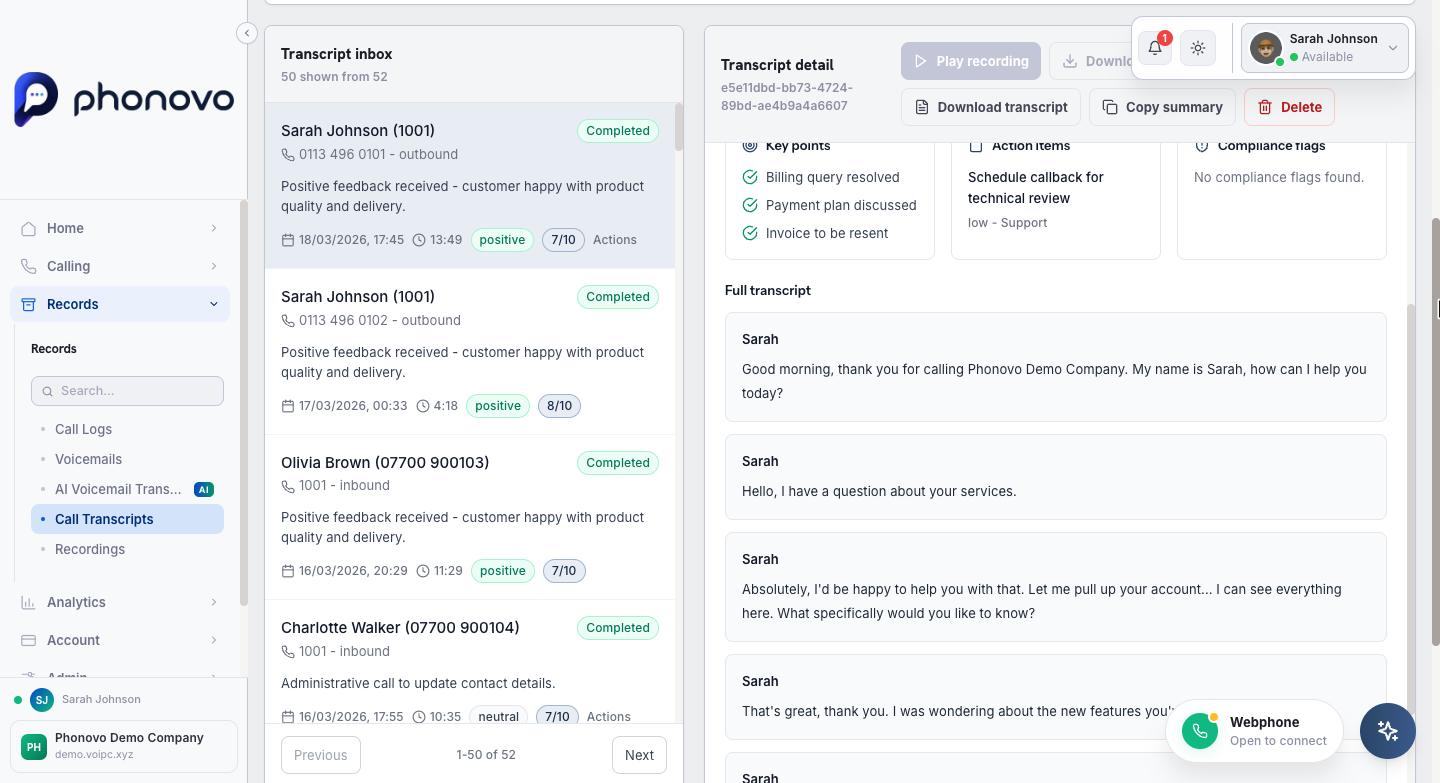
- Select any transcript in the left-hand list to open it on the right. Its status badge shows whether it's Completed, Pending, or Failed.
- The detail panel shows an AI summary of the call, along with Key points, any Action items picked out from the conversation, and Compliance flags if anything sensitive was mentioned.
- Scroll down to Full transcript to read the whole conversation broken into timestamped segments. Select any segment to jump the recording player straight to that point.
- If the call was recorded, select Play recording to listen from the top, or Download recording to save the audio file. Select Download transcript to save the transcript as a text file, or Copy summary to copy just the AI summary to your clipboard.
- If you have permission to remove transcripts, a Delete button is also available — this only deletes the transcript and its AI analysis, not the underlying call recording.
Related
Ask Olivia
You can also ask Olivia, the in-portal assistant, to walk you through this.