Manage recordings and greetings
Upload audio files or generate spoken greetings from text, then use them as prompts in IVR menus, call queues, and voicemail.
Who this is for: admins
Before you start
- Admin access to your Phonovo portal.
- Either an audio file to upload (WAV or MP3), or the wording you want read out if you're generating a greeting with text-to-speech.
Steps
- In the sidebar, under Logs & Records, select Recordings.
- Select Add Recording in the top right of the page.
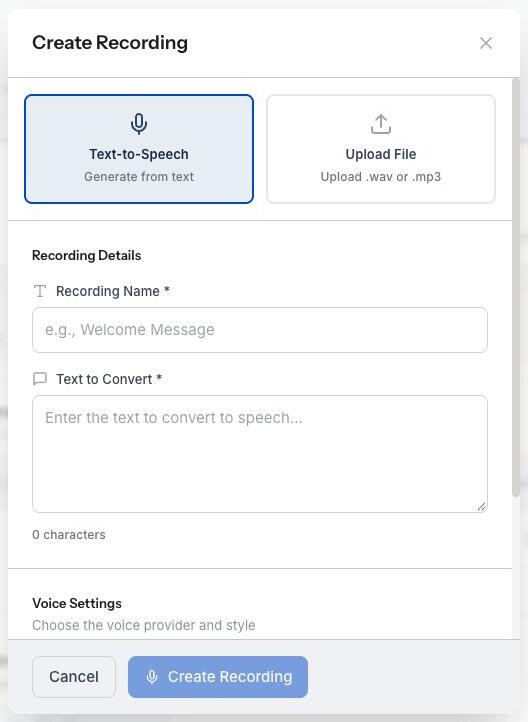
- Choose how you want to create the recording:
- Text-to-Speech - generates spoken audio from text you type in.
- Upload File - uploads your own WAV or MP3 recording.
- If you chose Text-to-Speech:
- Enter a Recording Name (for example,
Welcome Message). - Enter the Text to Convert - the exact wording you want read out.
- Under Voice Settings, pick an ElevenLabs Voice from the list.
- Enter a Recording Name (for example,
- If you chose Upload File:
- Enter a Recording Name (for example,
After Hours Message) and an optional Description. - Select a file to upload - only WAV or MP3 files are accepted.
- Enter a Recording Name (for example,
- Select Create Recording (text-to-speech) or Upload Recording (file upload) to save it.
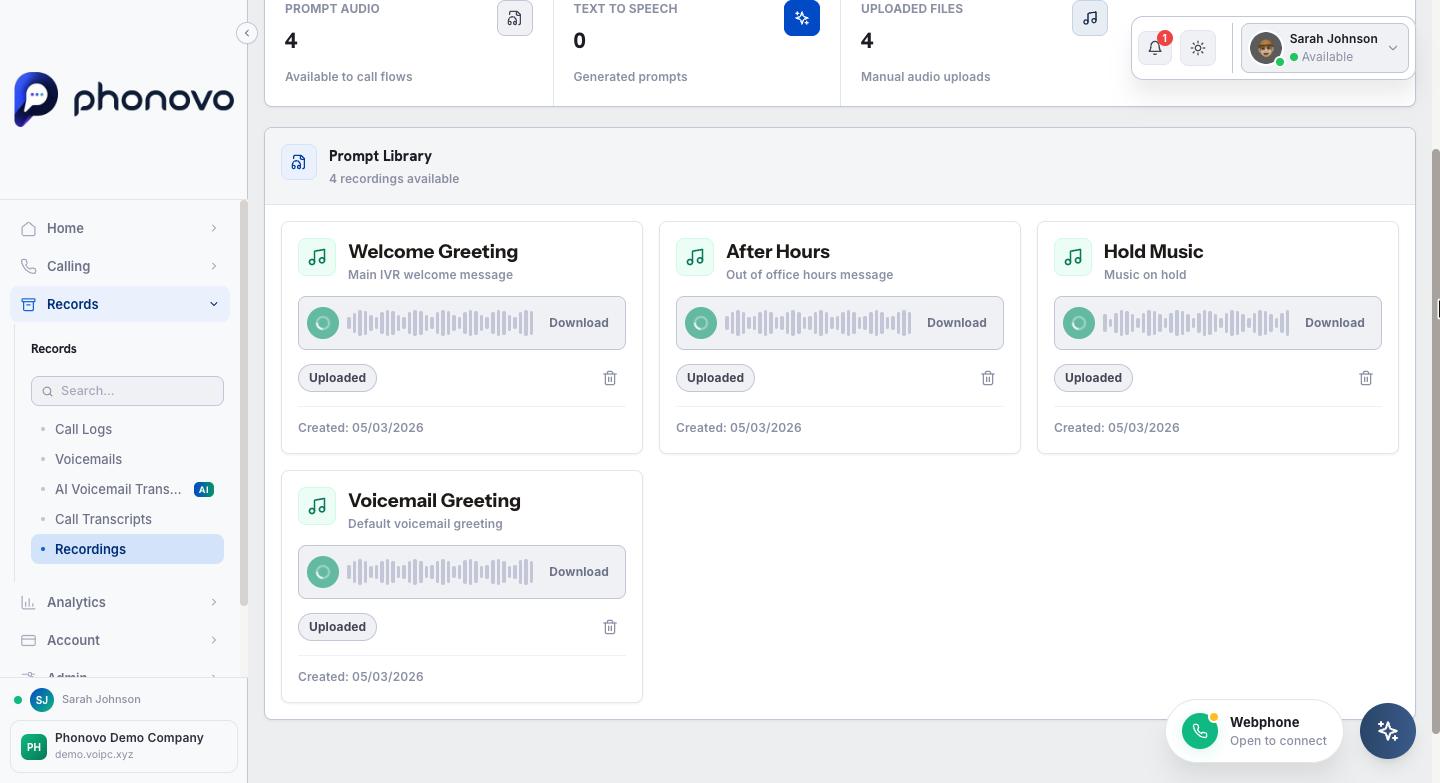
Once a recording is created, it appears in your Prompt Library and can be selected as a greeting or prompt wherever your call flow needs one - for example, the opening greeting or menu options in an IVR menu, or a time condition's after-hours message. You can play a recording back from its card at any time, or delete it if you no longer need it.
Note
Call queue announcements are the one exception - the queue's "Announce Sound" field is a free-text file path rather than a picker into this Prompt Library, so a recording created here isn't directly selectable there.
Related
Ask Olivia
You can also ask Olivia, the in-portal assistant, to walk you through this.
Audio file checks
Uploads must contain real audio in a supported container, rather than just carry an audio filename. Playlist files and references to online audio are refused. Re-export a rejected file as WAV or MP3 in your audio editor and upload that file. The same checks apply to voicemail greetings and music on hold.