Set your business details
Keep your company's name, contact details, and address up to date in your Phonovo portal.
Who this is for: admins
Before you start
- Admin access to your Phonovo portal.
- Your company name, VAT/tax number (if applicable), and current contact details and address to hand.
- The address your phones are actually used at, if it differs from your registered company address — this is the address given to a 999 or 112 operator.
Steps
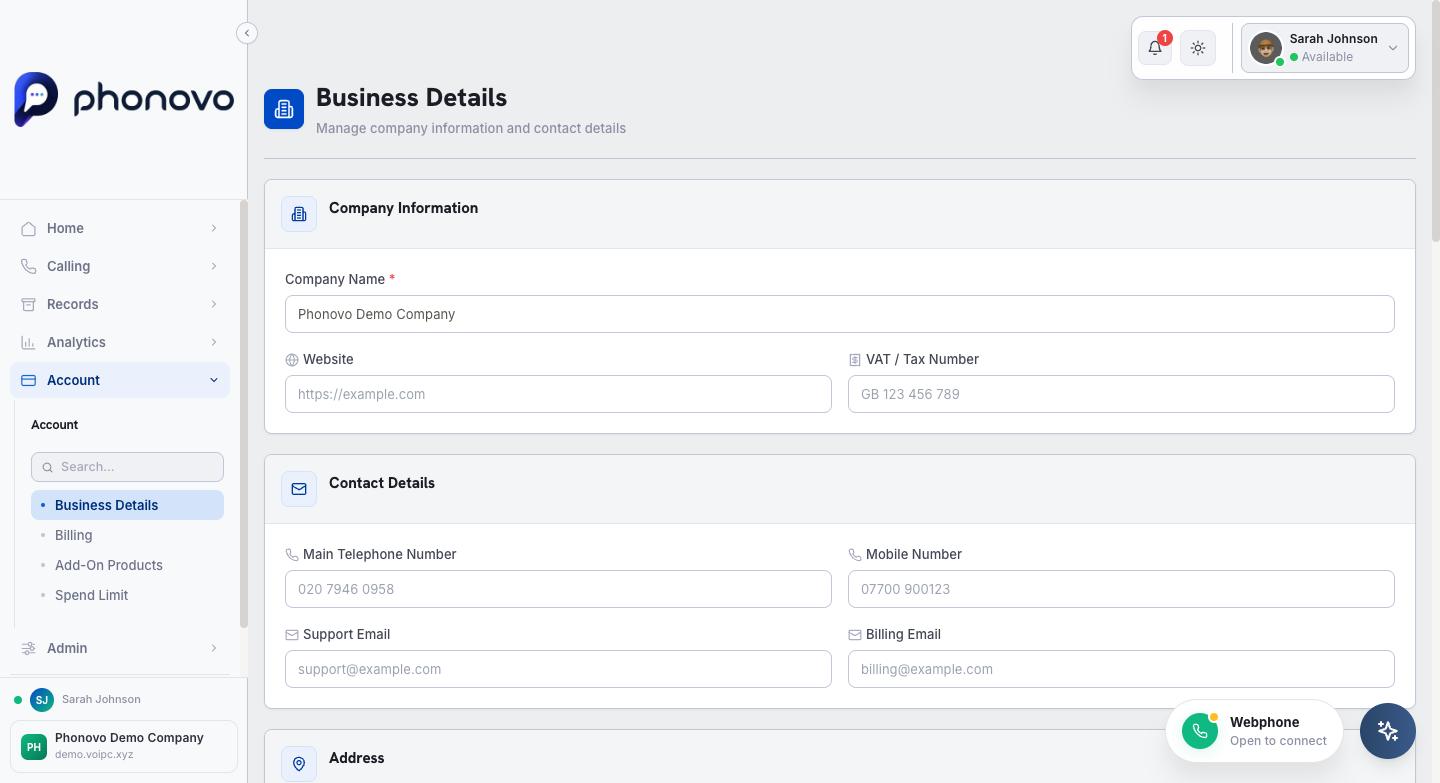
- In the sidebar, under Administration, select Business Details.
- Under Company Information, enter your Company Name (required), and optionally your Website and VAT / Tax Number.
- Under Contact Details, fill in your Main Telephone Number, Mobile Number, Support Email, and Billing Email as applicable.
- Under Address, enter your Street Address, City, County / Region, Postcode, and Country.
- Under Emergency Services Address, check the address held for 999 and 112 calls. Choose the same as your company address if that is where your phones are used, or enter a different address if they are used somewhere else, such as a separate site or branch office. The panel shows whether the emergency services already hold the address, or whether a recent change is still on its way to them.
- Select Save Changes.
The 999 address is the one you enter here, not where the phone is
When someone calls 999 or 112, the operator is given the address on this page — not the location the phone happens to be in. A phone carried to another office, or used from home, still presents this address. Keep it current: if your company moves or opens a new site, update it straight away. See Understand how 999 and 112 calls work.
Note
This page doesn't set your opening hours or what happens to calls outside them — that's managed from your inbound call routing's time conditions, where you set your hours and choose what happens outside them (divert to mobile, play a recording, and so on). The Business Details page links straight there if you need it.
Related
Ask Olivia
You can also ask Olivia, the in-portal assistant, to walk you through this.