Set a spend limit and understand fraud protection
Set a voluntary monthly cap on your outbound calling spend, and know what to do if your account is ever suspended for unusual call activity.
Who this is for: admins
Before you start
- Admin access to your Phonovo portal.
- Phonovo and your service provider already apply their own spend ceilings to every account automatically — you don't need to do anything for basic fraud protection to be active. This guide covers the extra, voluntary limit you can add on top, and what happens if a limit is ever breached.
Steps
Setting or tightening your limit
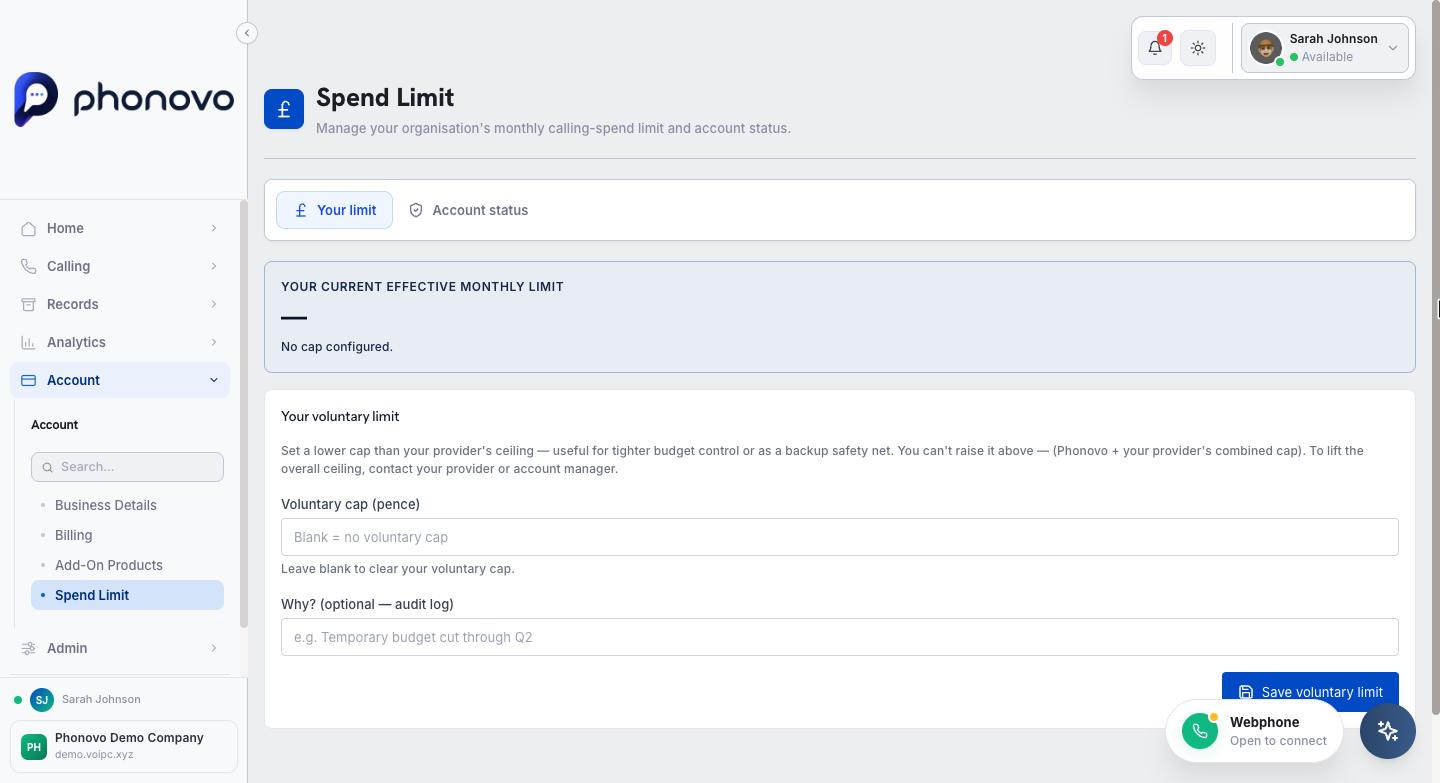
- In the sidebar, under Account, select Spend Limit.
- On the Your limit tab, check the Your current effective monthly limit panel at the top. This shows the cap that applies to your account right now, and who set it — Phonovo, your service provider, or a voluntary limit you set yourself.
- Under Your voluntary limit, enter an amount in the Voluntary cap (pence) field if you want a lower ceiling than the one already in place — useful for tighter budget control or as an extra safety net. You can only tighten this limit, not raise it above what Phonovo and your provider already allow; the field turns amber and the Save voluntary limit button is disabled if you try to enter a value that's too high.
- Optionally, enter a short note in Why? to record your reason — this is saved to your account's audit log.
- Select Save voluntary limit.
- To remove your voluntary limit and fall back to the standard ceiling, clear the Voluntary cap (pence) field and save again.
If you're suspended for unusual spend
- In the sidebar, under Account, select Spend Limit, then select the Account status tab.
- If everything is normal, you'll see a green No active spend suspension message — your outbound calls are running as usual.
- If your account has been suspended because spend crossed your limit, you'll see a red Outbound calling is blocked message instead, along with when it was suspended, the reason, the cap that was breached, and how much had been spent that month at the point of suspension. Outbound calls will keep failing until the suspension is cleared.
- Select Clear suspension to open the resolution form.
- Choose the option that best describes what you found: Legitimate usage — investigation cleared (the spend was genuine and the block was just the cap doing its job), Confirmed fraud — remediated (you found and fixed the problem, e.g. a compromised extension), or Wrongly triggered — engine bug (the suspension shouldn't have fired at all).
- In the text box, type at least 20 characters explaining what you found or did — this is required and is saved to your audit trail.
- Select Resolve suspension to lift the block and restore outbound calling.
Screenshot
Screenshot of the Account status tab showing an active suspension with the Clear suspension button, and the resolution modal with the three resolution category options.
Note
If you're not sure why a suspension happened or you don't recognise the call activity that triggered it, check the Troubleshooting section or ask Olivia before clearing it — resolving a suspension without investigating first can leave a genuine problem unresolved.
Related
Ask Olivia
You can also ask Olivia, the in-portal assistant, to walk you through this.