Keep track of missed calls and voicemail with notifications
Use the notification bell to see missed calls, new voicemails, and other alerts as soon as they happen, without leaving the page you're on.
Who this is for: everyday users and admins — the notification bell is always available, in every portal.
Before you start
- Nothing to set up — the bell icon is always in the top bar once you're logged in.
Steps
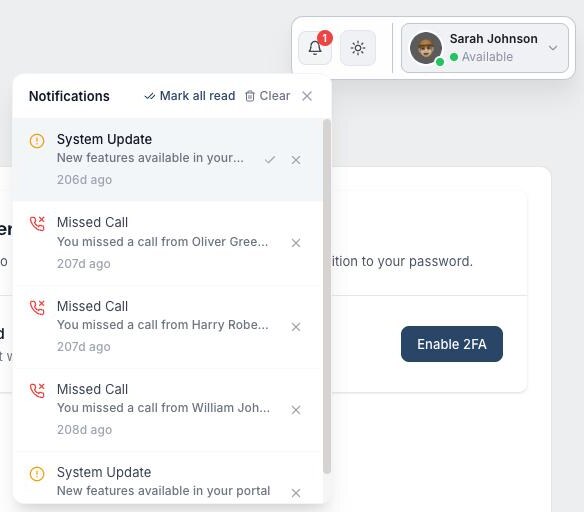
- Look for the bell icon in the top right of the portal, next to the light/dark theme switch and your account menu. If you have unread notifications, a red badge shows the count (it shows 9+ once you pass nine).
- Select the bell to open the notifications list. Each entry has an icon that tells you what it's about — for example a missed-call icon for a missed call, a voicemail icon for a new voicemail, a hash icon when a phone number is assigned, or a warning icon for a system alert.
- Select any notification to expand it and read the full message; doing so also marks it as read and reduces the unread count. Unread notifications have a light blue background so they stand out from ones you've already seen.
- If several notifications need clearing at once, select Mark all read at the top of the list. To remove a single notification for good, select the X next to it, or select Clear to remove everything in the list.
- You don't have to have the dropdown open to be notified — if something happens while you're working elsewhere in the portal, a pop-up toast appears in the corner of the screen for a few seconds as well as updating the bell's badge.
- If you previously closed the "complete your account setup" tour, look out for a Complete your account setup notification — selecting it reopens the setup wizard so you can finish it.
Related
Ask Olivia
You can also ask Olivia, the in-portal assistant, to walk you through this.