Manage your personal contacts
Build your own address book of people you call often, separate from your organization's shared team directory.
Who this is for: everyday users — your contacts are personal to your account; nobody else sees them.
Before you start
- Nothing special — just your Phonovo login. There's no setup required before adding your first contact.
Steps
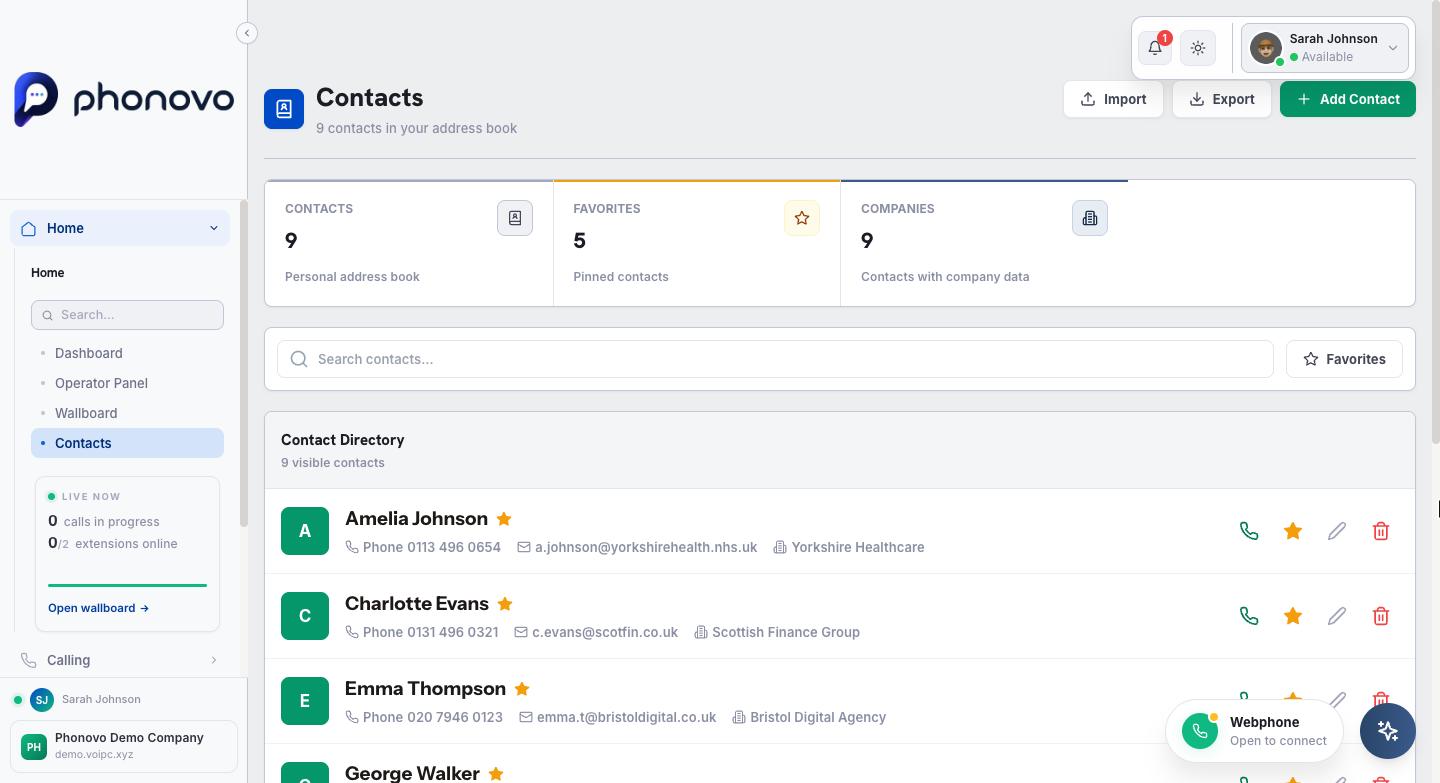
- In the sidebar, under Communication, select Contacts.
- Select Add Contact, then fill in a Name and at least one phone number — you can add separate Phone, Mobile, Work, Home and Other numbers for the same person. Email, Company, Job Title and Notes are optional. Tick Add to favorites if you want this person to stand out, then select Add Contact to save.
- Use the search box to find a contact by name, or select the Favorites filter to show only the people you've starred.
- Select the star icon next to any contact to toggle it as a favorite — favorites show a filled gold star.
- Select the phone icon next to a contact to call their primary number straight from the list.
- To update someone's details, select the pencil (edit) icon on their row, change what you need, and save. To remove a contact entirely, select the trash icon and confirm the deletion — this can't be undone.
- To bring in contacts from elsewhere, select Import, then either select Choose File to browse for a CSV file from your device, or paste CSV content directly into the box below. The file needs a header row with columns from: Name, Phone, Mobile, Work, Home, Other, Email, Company, Job Title, Notes — every contact needs a name and at least one phone number.
- Select Export at any time to download your whole address book as a CSV file — handy for backing it up or moving it to another app.
Related
Ask Olivia
You can also ask Olivia, the in-portal assistant, to walk you through this.