Forward your calls to another number
Redirect calls from your extension to your mobile or another number, so you never miss a call while you're away from your desk.
Who this is for: everyday users and admins — you can turn this on for yourself, or an admin can set it up on your behalf.
Before you start
- An extension assigned to your account.
- The number you want calls forwarded to, including the country code if it's not a UK number.
Steps
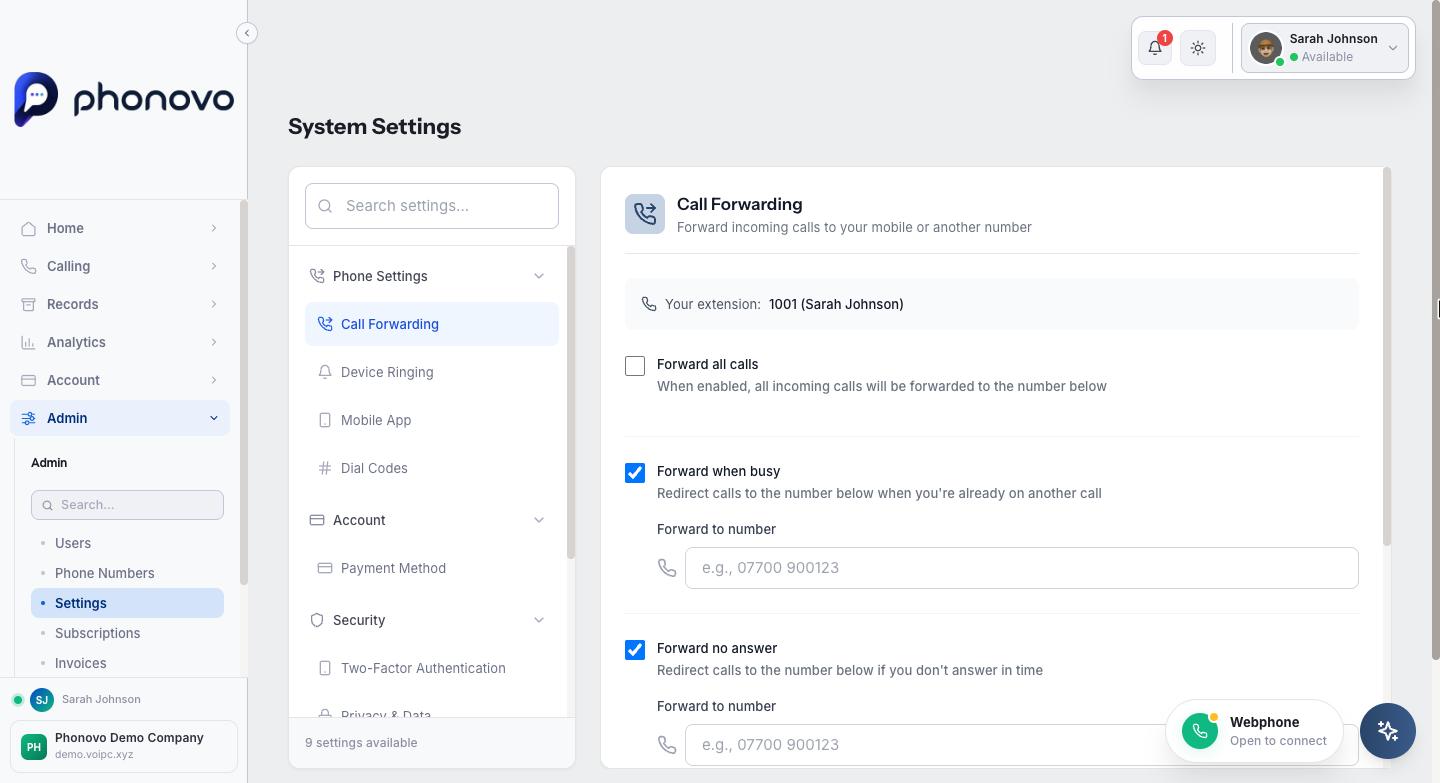
- Click your name in the top right and select Settings, then choose Call Forwarding under Phone Settings. This page is scoped to your own extension automatically.
- Three separate forwarding rules are available, each with its own destination number: Forward all calls (redirects immediately, before your phone even rings), Forward when busy (only redirects if you're already on a call), and Forward no answer (only redirects if the call rings out without being picked up). Turn on whichever combination you need, enter a destination for each, then select Save Changes. If Forward all calls is on, the other two rules won't get a chance to apply, since every call is redirected immediately.
- Turning a rule back off returns that part of your extension's behaviour to ringing normally.
- An admin can manage the same three rules for any extension in the domain from the Extensions page instead: select Extensions in the sidebar, find the extension, select the Configure button, then open the Forwarding tab. This is useful when an admin is setting forwarding up on someone else's behalf — it's the same rules as step 2, just reachable for any extension rather than only your own.
Note
If a save ever reports that part of what you entered wasn't applied, the page shows a warning naming exactly which setting didn't save — it will never show a plain "saved" confirmation while quietly dropping a change. If you see that warning, contact an admin.
Related
Ask Olivia
You can also ask Olivia, the in-portal assistant, to walk you through this.