Read AI summaries of your voicemails
See a written summary, sentiment, and callback details for every voicemail without having to listen to each one.
Who this is for: everyday users and admins, anyone with voicemails in their mailbox.
Before you start
- At least one voicemail message already in your mailbox.
- AI transcription switched on for your company. If it isn't, new voicemails simply won't have a transcript yet, ask your admin to check with Phonovo support.
Automatic transcription
New voicemails are picked up automatically within about a minute when the extension's Transcribe switch is on and voicemail transcription is enabled for your company and included in its plan. Open the extension's Voicemail settings to turn Transcribe on, then select Save Changes. The switch is saved for that extension and remains set when you reopen its settings. It is off by default. Processing can take longer during busy periods.
Messages received while transcription is switched off are skipped. Existing messages are not transcribed when you turn it on. If processing is unavailable, the message remains available to listen to; transcription is not automatically retried.
Read a transcript from Voicemail
When you can open AI Voicemail Transcripts, the main Voicemail page also shows a short preview below each completed message while the mailbox's Transcribe switch is on. Select Show full transcript to read and select the full text and its AI summary. A message being processed says Transcribing.... If processing failed or is unavailable, it says Transcription unavailable. Messages without a transcript do not show a transcript section. Turning off Transcribe hides these previews on the main Voicemail page, including older messages; you can still find existing records on the AI Voicemail Transcripts page.
Steps
- In the sidebar, under Logs & Records, select AI Voicemail Transcripts.
- At the top of the page, a row of stat cards gives you a quick overview: total Voicemails, how many have been Transcribed, the Avg Urgency score across recent messages, and how many are High Urgency (need a fast response).
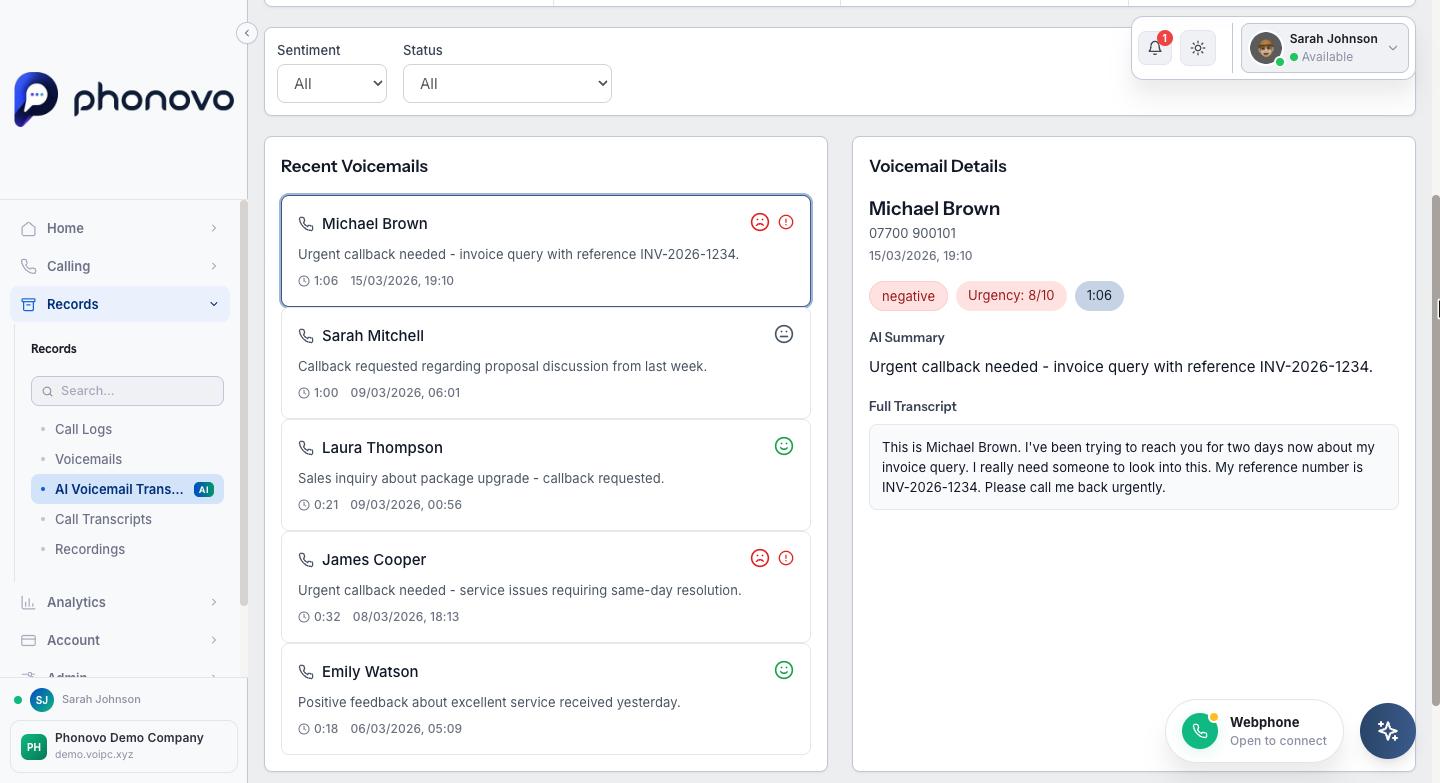
- Use the Sentiment filter (All, Positive, Neutral, Negative) and the Status filter (All, Completed, Pending, Failed) above the list to narrow down what you're looking at.
- In the Recent Voicemails list on the left, each card shows the caller's name or number, a one-line AI summary, the call duration, and a sentiment icon (smiling, neutral, or frowning face). A red alert icon means the message has a high urgency score.
- Select any voicemail card to open its full details on the right: the AI summary, a sentiment badge, an urgency score out of 10, and, where Olivia could work it out from what was said, the caller's intent, any action required, key topics, a callback number, and the best time to call back.
- Scroll down in the details panel to read the Full Transcript of the message word for word.
- Don't need a transcript any more? Select the trash icon in the details panel to delete it. You'll be asked to confirm first.
- Select Refresh in the top right at any time to pull in the latest voicemails and transcripts.
Related
Ask Olivia
You can also ask Olivia, the in-portal assistant, to walk you through this.