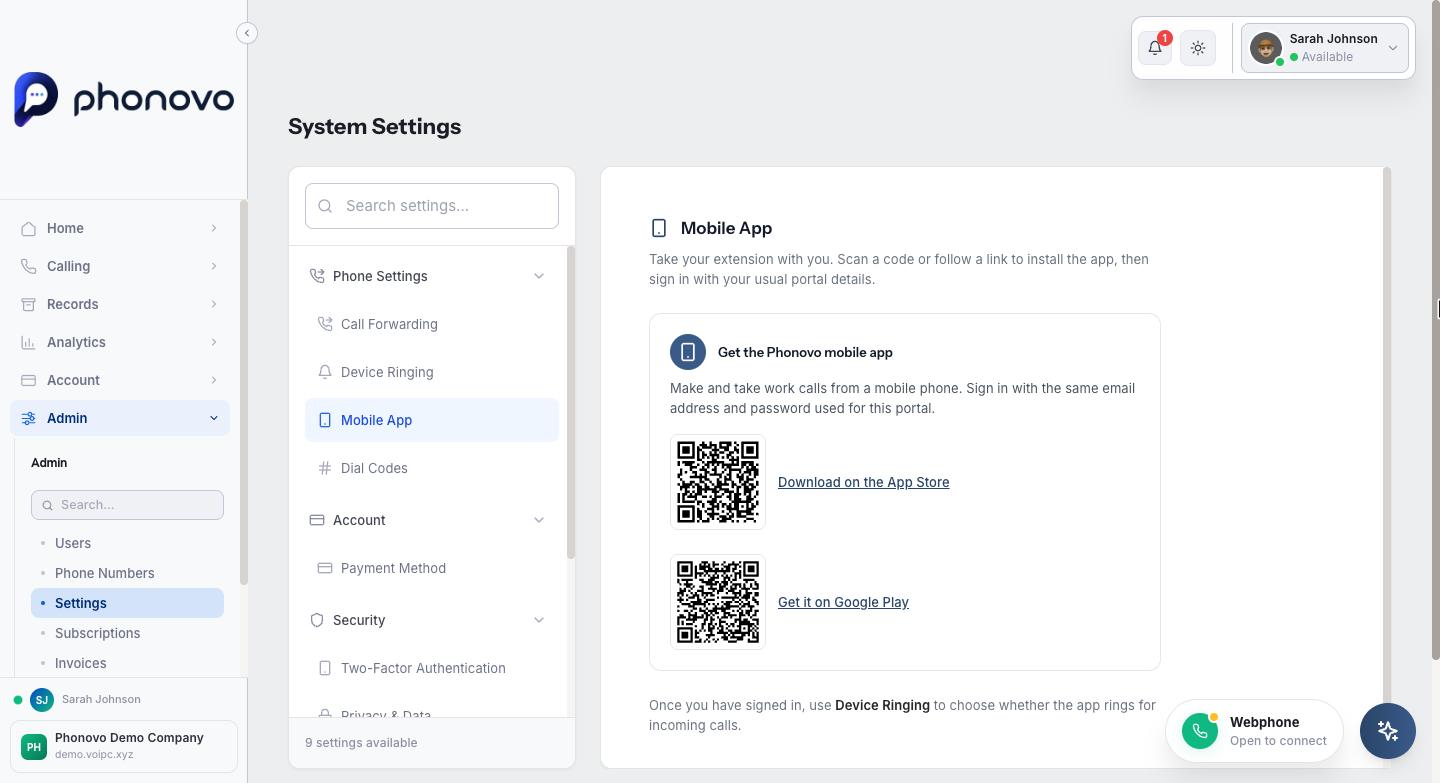
Get the Phonovo mobile app
Make and take your work calls on your own phone, using your normal extension and company number.
Who this is for: everyday users and admins — anyone with an extension.
Before you start
- An extension assigned to your account.
- The email address and password you use to sign in to the Phonovo portal.
- An iPhone running iOS 15.1 or later, or an Android phone running Android 7.0 or later.
Steps
- Click your name in the top right and select Settings, then choose Mobile App under Phone Settings.
- Scan the QR code for your phone with its camera, or select the store link to open the listing directly. The app is called Phonovo.
- Install the app and open it.
- Sign in with the same email address and password you use for this portal. You do not need a separate account, and you do not need to enter any server or SIP settings — the app finds those itself.
- Allow notifications when the app asks. Without this permission your phone cannot alert you to an incoming call when the app is closed.
- Back in the portal, open Settings → Device Ringing and check that Mobile App shows Registered. This confirms your phone has connected. If it still says Not set up yet, close and reopen the app while signed in. If no status shows there at all, registration information is temporarily unavailable — wait a few minutes and check again.
- Make sure the Mobile App toggle is set to Ringing, then select Save Changes. If it is set to Silent, the app stays signed in but will not ring.
Using more than one device
Your desk phone, the browser webphone and the mobile app can all ring at once. Use Device Ringing to choose which ones do.
Related
Ask Olivia
You can also ask Olivia, the in-portal assistant, to walk you through this.