Reset an extension's SIP password
Generate a brand new SIP registration password for an extension, for the rare case where a manual or third-party SIP device needs it entered by hand.
Who this is for: admins
Before you start
- Admin access to your Phonovo portal (this action requires an admin or superadmin role).
- Your own login password, to hand — you'll be asked to re-confirm it before the new SIP password is shown.
- The extension you want to reset already exists — see Create an extension and assign it to a user.
Do you actually need this?
Yealink desk phones added via Devices on the extension provision automatically and never need this — see Link a desk phone and set up line keys. The webphone doesn't need it either; it signs in with your own portal login. This is only for manual or third-party SIP hardware/software you're configuring by hand with a username and password.
Steps
- In the sidebar, under Communication, select Extensions.
- Find the extension in the list and select the Configure icon (the sliders icon in the Actions column).
- On the General tab, find the SIP Credentials section and select Reset SIP password.
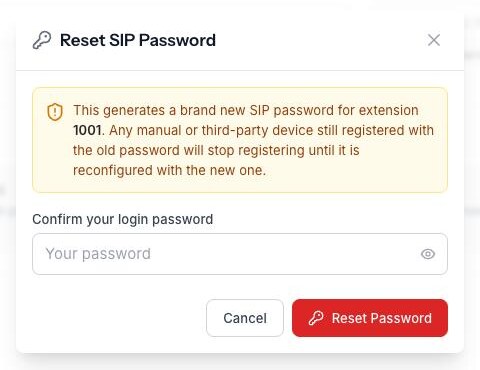
- Enter your own portal login password to confirm it's really you, then select Reset Password.
- The new SIP password is shown once, in a copyable box. Select Copy, then paste it straight into the device or app you're configuring.
Copy it now
Once you close this dialog, the password is gone for good — there's no way to view it again. If you lose it, come back to this page and reset it once more (this immediately invalidates the previous password, so any device still using the old one will stop registering until you update it too).

Related
- Admin guides
- Create an extension and assign it to a user
- Link a desk phone and set up line keys
- Troubleshooting
Ask Olivia
You can also ask Olivia, the in-portal assistant, to walk you through this.